1. Set up your profile, rooms and classes
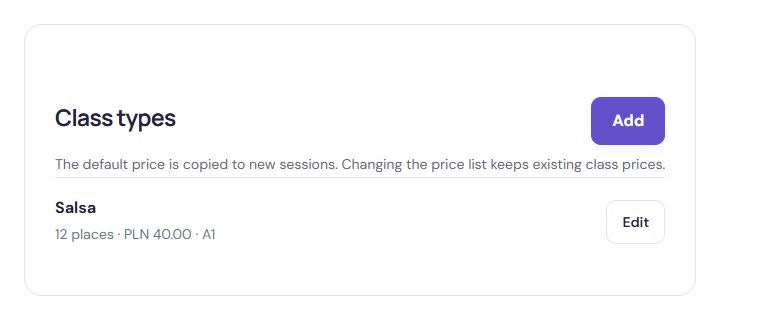
In the Studio app
Find on screen:Class typesSet up your profile, rooms and classes
Actual Studio interface. Sample data.
Open full-size screenshotCreate one profile under your name or brand. In the schedule and offering area, add yourself as an instructor, a class type and each room with its venue name, city and address. Mark rooms rented from other businesses as external.
2. Set the price, capacity and booking terms
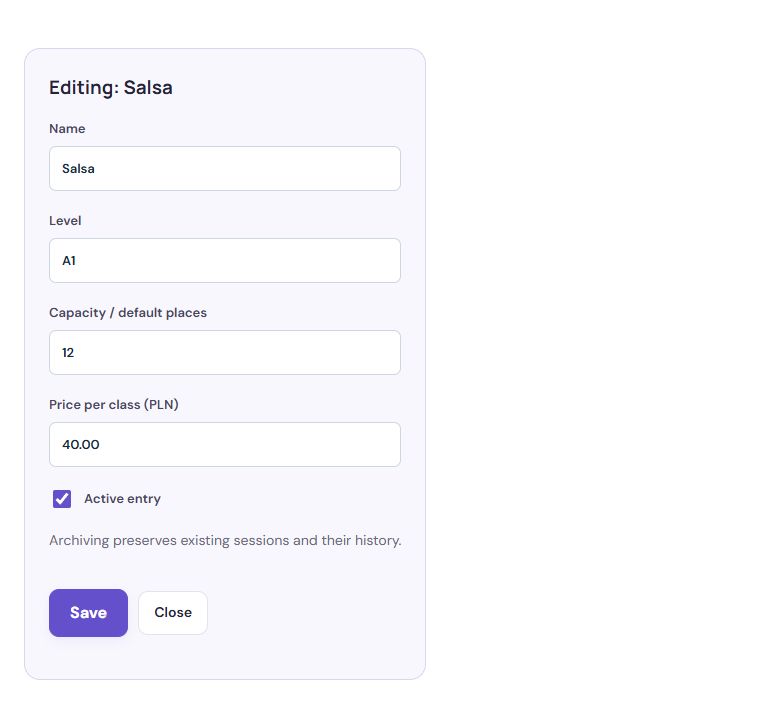
In the Studio app
Find on screen:Price per class (PLN)Set the price, capacity and booking terms
Actual Studio interface. Sample data.
Open full-size screenshotConfigure booking availability and rules. Capacity limits help match group size to the room and class format. Participants see cancellation terms before confirming.
- Add a room, instructor and class offering.
- Schedule and publish sessions with a price and participant limit.
- Enable online bookings and share the schedule link.
3. Publish classes and share the link

In the Studio app
Find on screen:Share the business profile and published classesPublish classes and share the link
Actual Studio interface. Sample data.
Open full-size screenshotIn “Profile and booking”, publish the profile and enable class bookings. In the schedule, publish the week or the whole series. Copy the booking link above the schedule to share all classes, or the link next to a specific class. Participants do not need access to the organiser panel.
Participants open your school’s page, choose a session and check the instructor, room, level and price. After signing in, they can confirm a booking if the school has enabled bookings and places are available.
Customers do not need the staff dashboard. The offer is available at the school’s address, and participants check their own bookings in the customer area.
4. Review bookings and payments
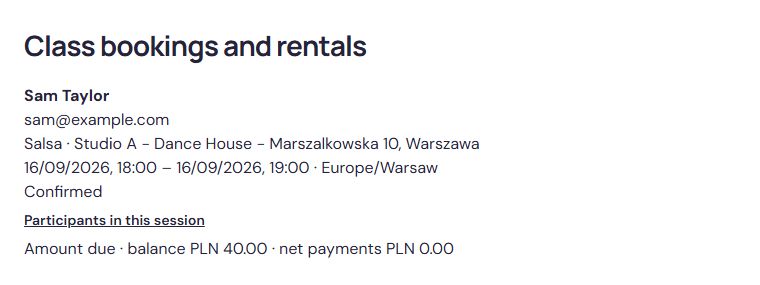
In the Studio app
Find on screen:Attendance list for this sessionReview bookings and payments
Actual Studio interface. Sample data.
Open full-size screenshotYour team uses the school dashboard for bookings, attendance and payments. After booking, participants receive an email confirmation with the booking terms, and a notice if the session changes or is cancelled. Participants can cancel within the allowed time; after the deadline, they should contact the school.
Studio lets you record payments manually. Bookings are not paid online; you can sell passes online once you connect your own Stripe account. Tell participants how to pay for classes according to your school’s rules.
Frequently asked questions
Do participants need to install an app to book?
No. Booking works in the browser, including on a phone. Participants open the link to the school’s schedule, choose a session, sign in and confirm the booking. They can check their bookings later in the customer area.
Do participants receive a booking confirmation?
Yes. After booking, participants receive an email confirmation with the booking terms. If the school changes or cancels the session, Studio sends a notification.
Can participants cancel a booking themselves?
Yes, within the time allowed by the school’s rules. Participants see the cancellation terms before confirming. After that time, they should contact the school.
Can bookings be paid online?
Individual bookings are not paid online. You can sell passes online once you connect your own Stripe account; staff record other payments manually in the school dashboard.