1. Choose the room you offer
In the Studio app
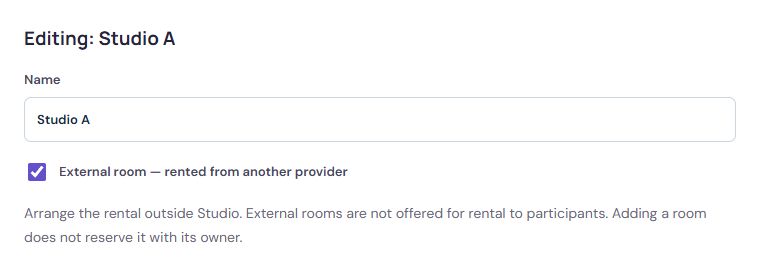
Find on screen:External room — rented from another providerChoose the room you offer
Actual Studio interface. Sample data.
Open full-size screenshotMarking a room as external lets you organise your own classes in a rented venue. It does not book the room with its owner or offer it to customers for rental. Handle the agreement and payment to the owner outside Studio.
2. Set the price and enable rentals
In the Studio app
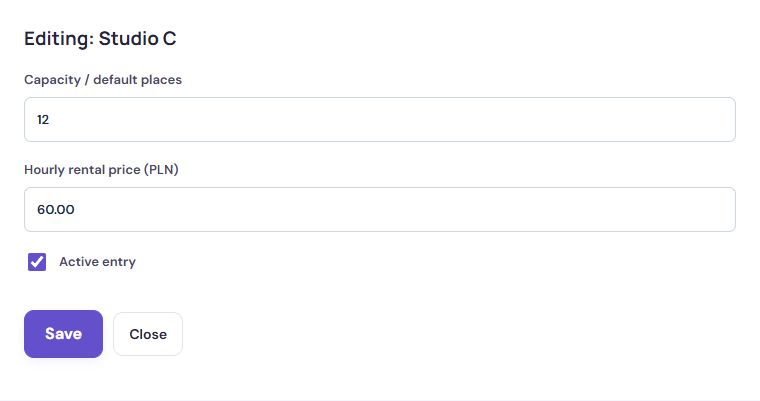
Find on screen:Hourly rental price (PLN)Set the price and enable rentals
Actual Studio interface. Sample data.
Open full-size screenshotConfigure rooms, prices and rental availability, then enable online bookings. Customers will see room rental on the public school page. When rentals are disabled, they cannot make new bookings this way.
3. Check time selection and booking
In the Studio app
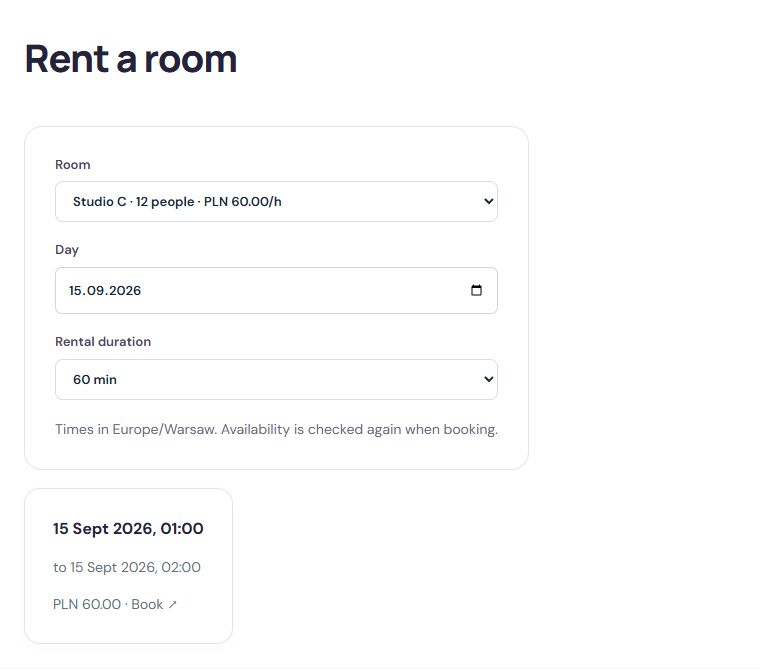
Find on screen:Rental durationCheck time selection and booking
Actual Studio interface. Sample data.
Open full-size screenshotParticipants choose a room, date and rental duration. Studio shows matching available slots. Before confirming, customers review the summary and booking terms.
Availability may change between viewing a slot and booking it. Treat a booking as accepted only once the app confirms it.
4. Manage the rental and record payment
In the Studio app
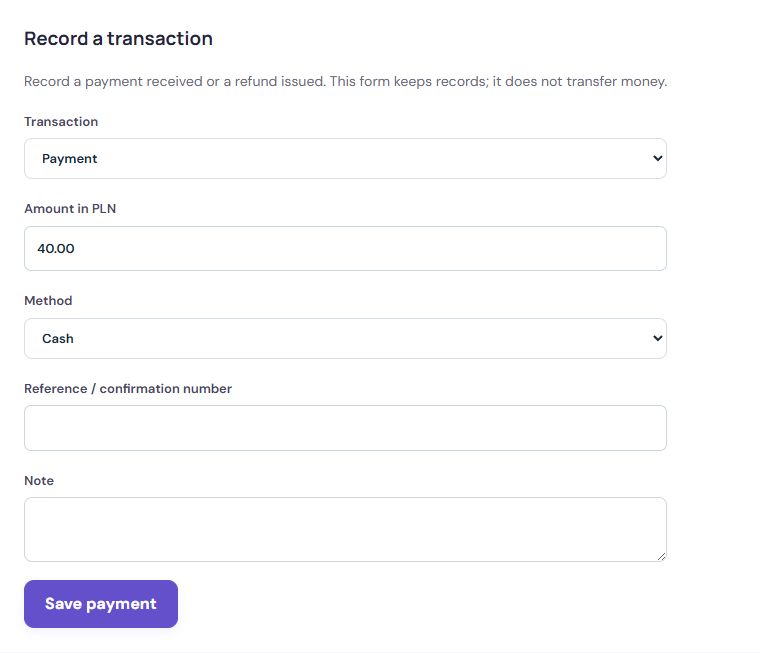
Find on screen:Save paymentManage the rental and record payment
Actual Studio interface. Sample data.
Open full-size screenshotCustomers find rentals in their bookings and receive an email confirmation, plus a notice if the rental is cancelled. The school manages them in the dashboard, where staff can manually record payments received. Automatic card payments are not currently available.
Give renters practical information: how to enter the building, collect a key and leave the room after practice. Also explain whom to contact for changes after the online cancellation deadline.
Frequently asked questions
How do customers book a room for their own practice?
On the school’s public page, they choose a room, date and rental duration, and Studio shows the available slots. Before confirming, they review the summary and terms. The booking is accepted only once the app confirms it.
Can room rentals be paid by card?
No. Automatic card payments for rentals are not currently available. Tell customers how to pay, and staff record the payment received in the school dashboard.
Can I turn rentals off temporarily?
Yes. When rentals are disabled, customers cannot make new room bookings through the school page.