1. Provide the information needed to choose a group
In the Studio app
Find on screen:Check availability and book1. Provide the information needed to choose a group
Actual Studio interface. Sample data.
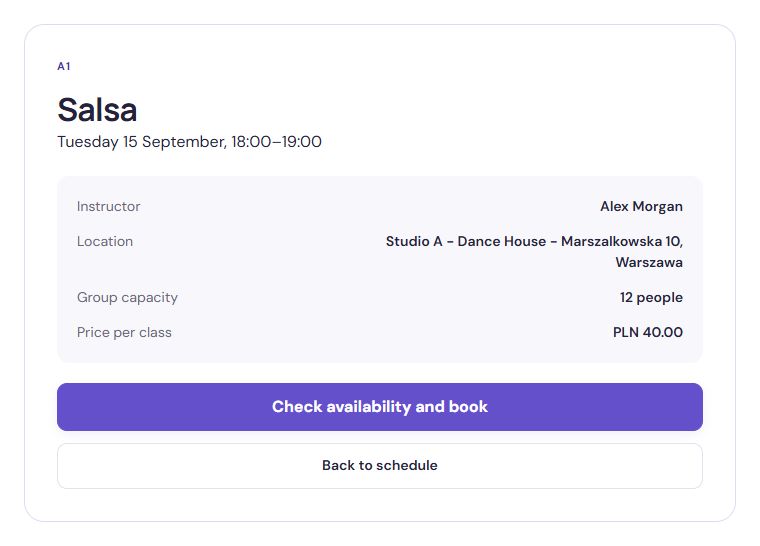
Open full-size screenshotA first-time participant should know whether a class suits them. Include dance style, level, instructor, duration, location and price. A group name familiar to regulars may mean little to a newcomer.
In Studio, start by creating your school and adding rooms, instructors and offerings. Then plan specific sessions. Check that class names and levels also make sense to people outside your team.
Create one profile under your name or brand. In the schedule and offering area, add yourself as an instructor, a class type and each room with its venue name, city and address. Mark rooms rented from other businesses as external.
Each class has its own room and address. All published classes share the organiser’s schedule. Studio checks conflicts within that profile; you arrange availability with the room owner and allow for travel time yourself.
2. Set capacity and payment arrangements
In the Studio app
Find on screen:Price per attendance (PLN)2. Set capacity and payment arrangements
Actual Studio interface. Sample data.
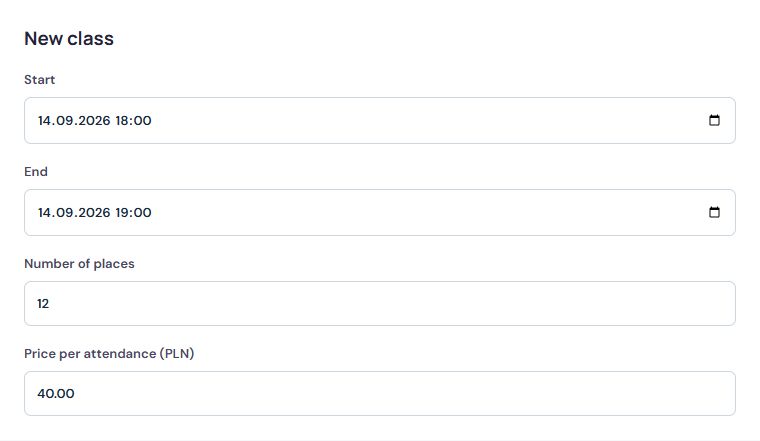
Open full-size screenshotSet capacity according to comfortable teaching conditions, not just room size. Solo practice and partner work require different amounts of space. If you need to hold back a few places for organisational reasons, account for that before opening bookings.
Make clear what the price covers. In the current Studio version, staff record received payments manually. A booking does not automatically charge a card; payment arrangements must be communicated separately.
3. Define cancellation rules
In the Studio app
Find on screen:Free cancellation: how many hours before the session?3. Define cancellation rules
Actual Studio interface. Sample data.
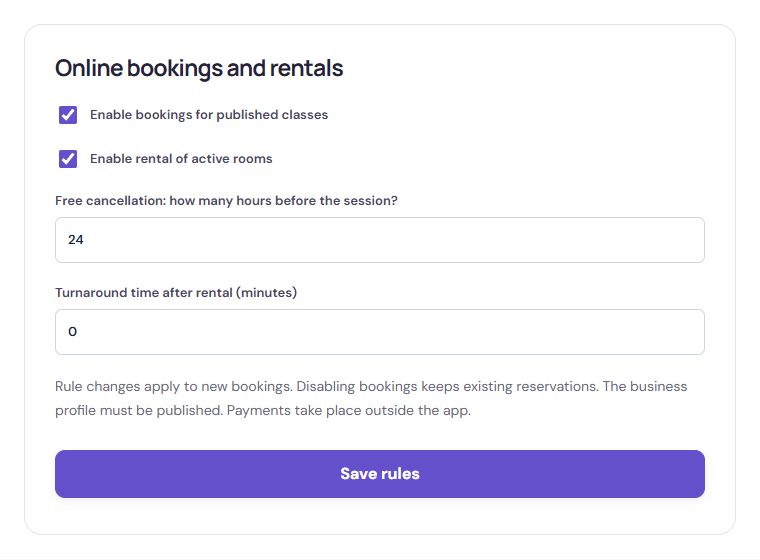
Open full-size screenshotParticipants should know the cancellation deadline before confirming. Set it to give the school time to respond to a freed place. Keep the rules consistent across messages, the schedule and booking screens.
Example: if a class starts on Tuesday at 18:00 and online cancellation closes 24 hours earlier, the deadline is Monday at 18:00. This is an example, not Studio’s default setting. Check the rule configured for your school.
After the deadline, customers should contact the school. Provide a specific contact method and make sure staff know how to handle these requests.
4. Publish the schedule and test it as a participant
In the Studio app
Find on screen:Details4. Publish the schedule and test it as a participant
Actual Studio interface. Sample data.
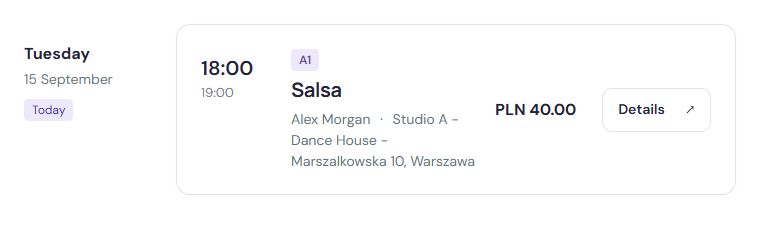
Open full-size screenshotIn “Profile and booking”, publish the profile and enable class bookings. In the schedule, publish the week or the whole series. Copy the booking link above the schedule to share all classes, or the link next to a specific class. Participants do not need access to the organiser panel.
Once sessions are ready, enable bookings and open the public school page. Also use a phone to check that prices, times and the booking button are readable.
Before inviting customers, make a test booking for a dedicated session. Sign in as a participant, confirm it and check both the customer area and staff dashboard. Afterwards, clean up the test booking.
- Does the participant see the correct room, instructor and price?
- Are cancellation rules clear before confirmation?
- Is the booking visible after reopening the customer area?
- Can staff find the booking and record a payment?
5. Share one correct link
In the Studio app
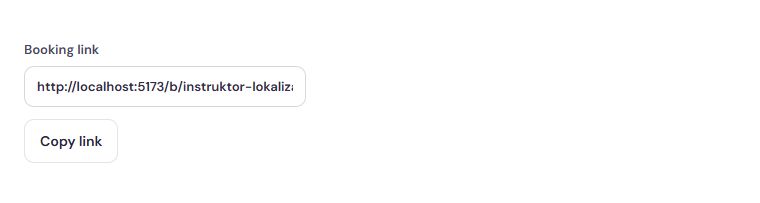
Find on screen:Copy link5. Share one correct link
Actual Studio interface. Sample data.
Open full-size screenshotShare your school’s public schedule address. You can place it on the school website and social profiles. A staff dashboard link would confuse customers.
Briefly explain how to choose a session, sign in and confirm a booking, and where to find bookings later. Let participants know they will receive an email confirmation after booking and a notice if a session changes or is cancelled. Ask them to check their spam folder after their first booking.
6. Establish your team’s daily routine
In the Studio app
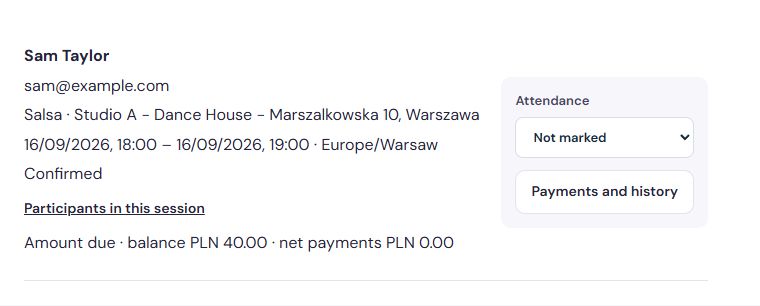
Find on screen:Attendance6. Establish your team’s daily routine
Actual Studio interface. Sample data.
Open full-size screenshotAssign someone to check bookings and changes before classes. Decide who records attendance and payments so staff do not keep competing lists.
After the first week, collect participants’ questions. If choosing a level is a recurring issue, clarify the description. If customers confuse booking with payment, improve the payment instructions. Refine the process using real situations at your school.
Changing a room address in the catalogue does not update existing classes. To move a scheduled class, edit the class and review the impact on participants. After saving, check the public schedule and tell participants about the move.